Your hosting control panel (cPanel) is accessed through the Easy on Net Customer Service Portal. This guide will walk you through how to log in and locate the tools you need to manage your website, email accounts, and hosting settings.
If you're trying to manage email accounts, files, or website settings, this is the correct place to start.
- You will need your Easy on Net portal login credentials.
- If you do not have access, contact your account administrator or our support team.
- The cPanel interface is accessed from within your service details page.
Step-by-Step Instructions
Step 1: Go to the Easy on Net website and open the login page
Visit https://www.easyonnet.com. At the top of the page, click the Account Login link to access the customer portal.
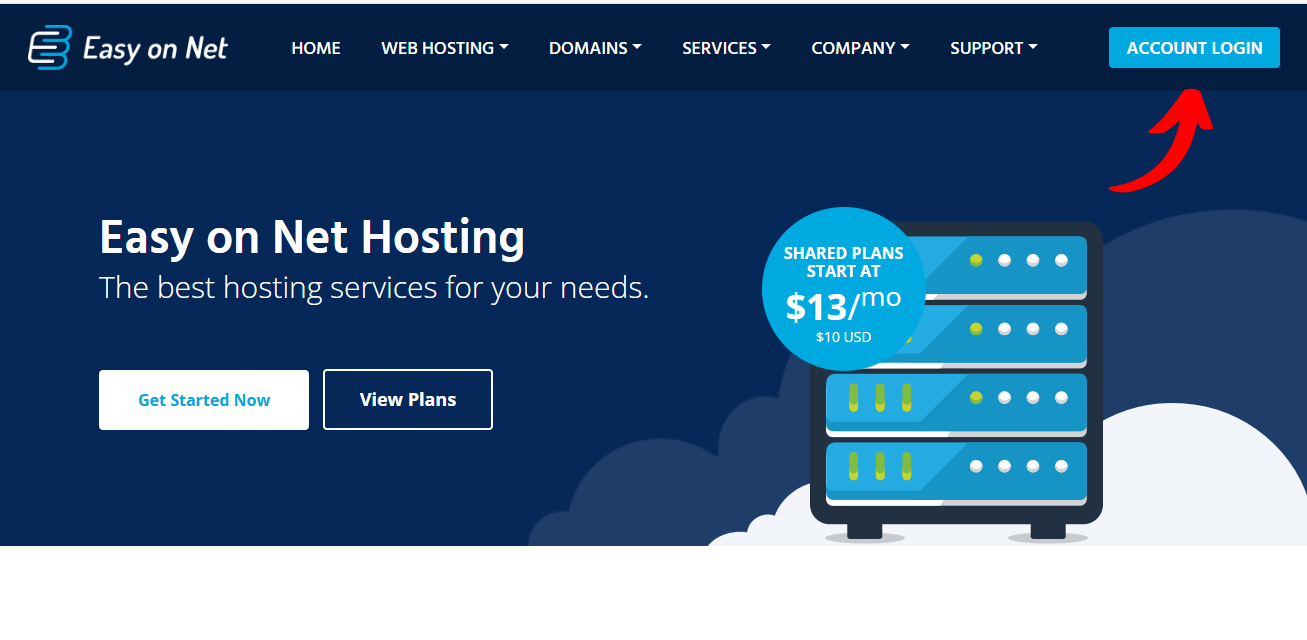
Click Account Login at the top of the Easy on Net website to access the customer portal.
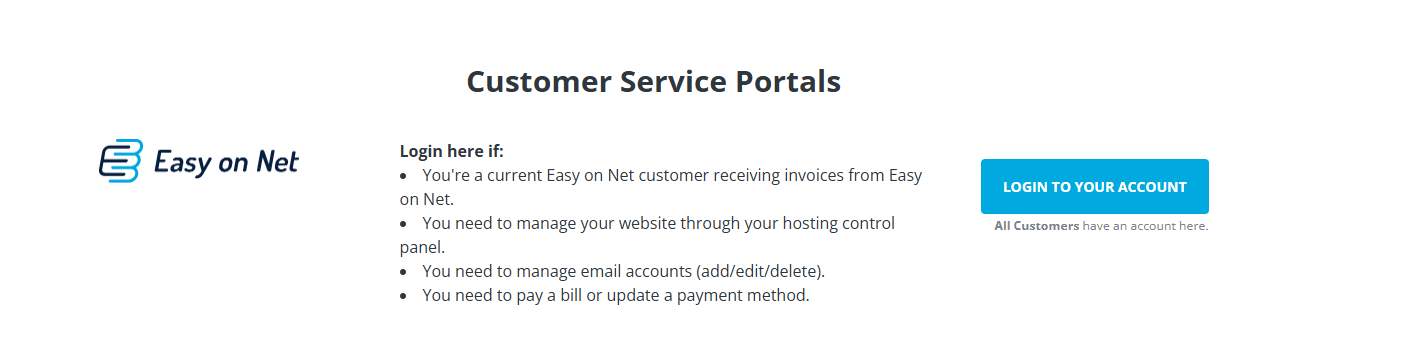
Scroll to the Portals List and Click Login to Your Account beside the first portal, which is our main customer service portal where All Current Customers have an account.
Step 2: Log in to the Customer Service Portal
Enter your email address and password to sign in. Once logged in, you will see your account dashboard with a list of your active services.
Locate your website or hosting service in the list (for example, your domain name will appear here).
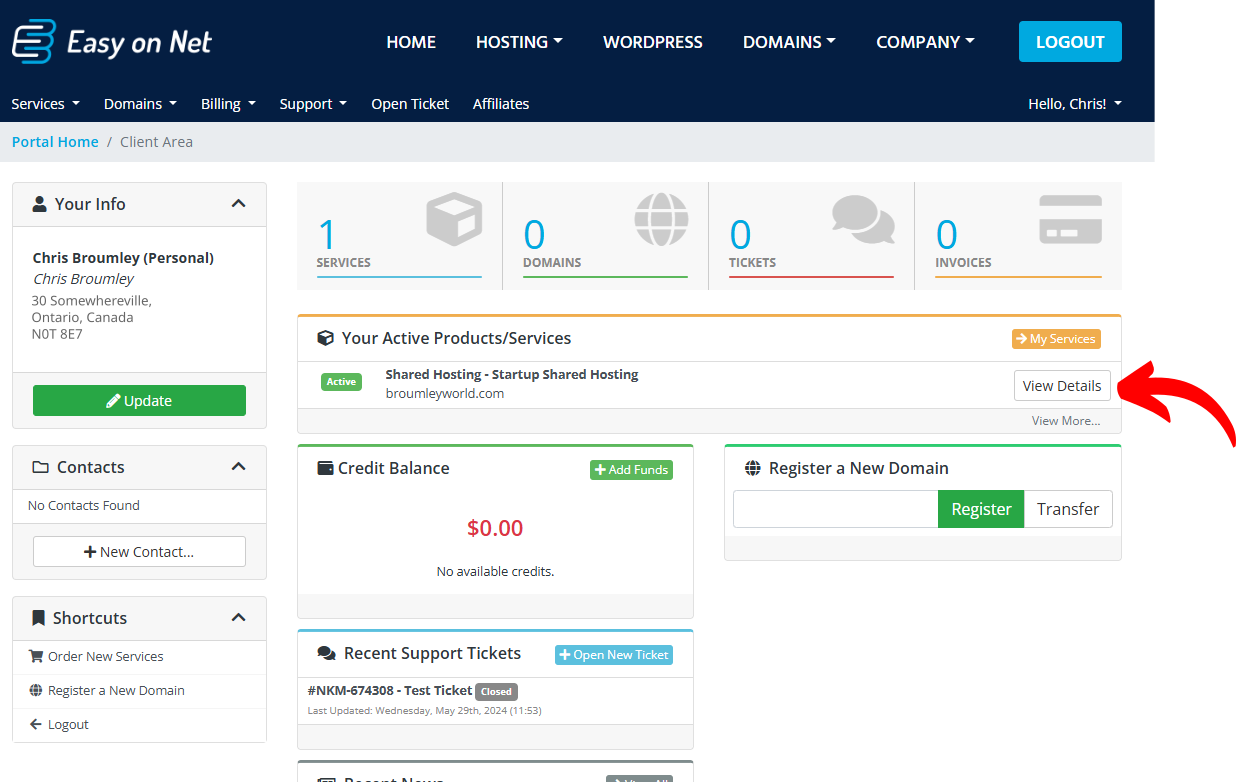
After logging in, your dashboard will display your active services. Find your hosting account in this list, click View Details button!
Step 3: Open your hosting service details
Click the View Details button beside your hosting service. This will open the service management page for your account.
This page contains shortcuts to important tools and settings for your hosting environment.
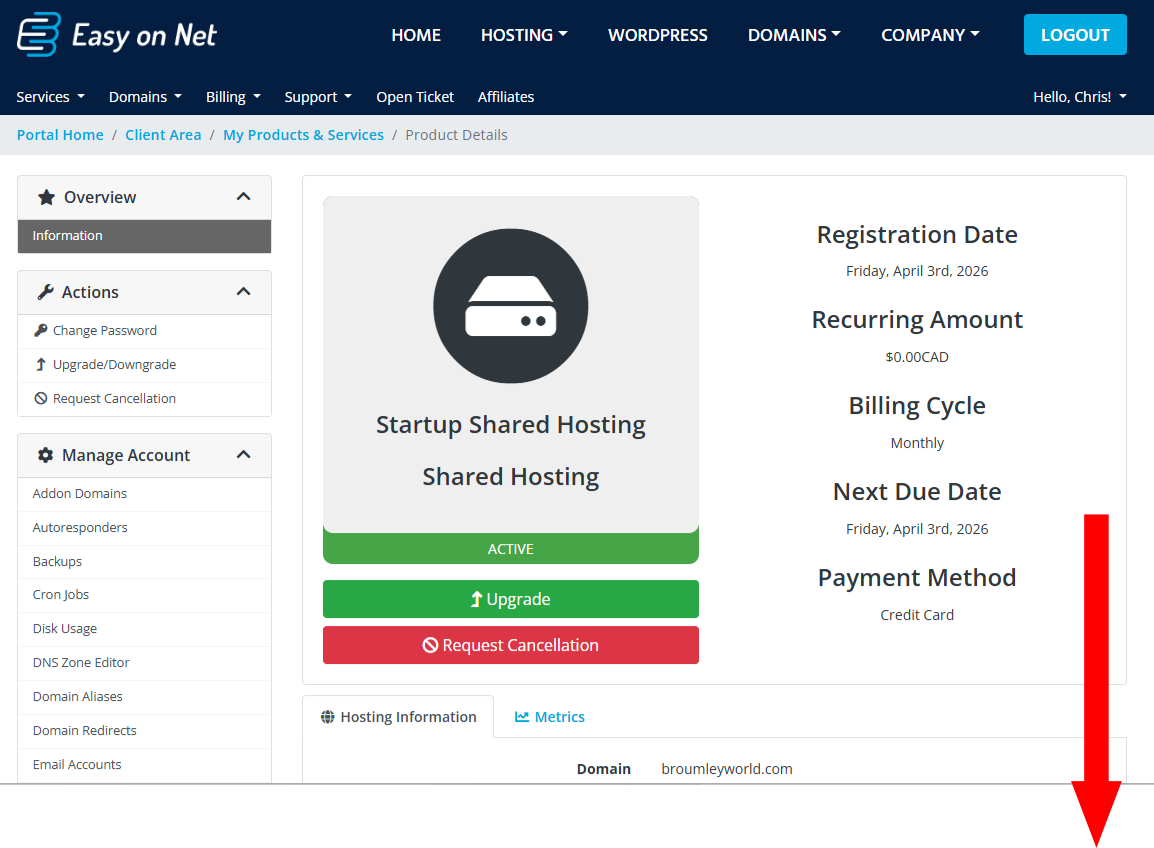
Click View Details to access your hosting service management page.
Step 4: Access cPanel and hosting tools
Scroll down the service details page to find a set of management icons. These allow quick access to common features such as:
- Email account management
- File manager
- Database tools
- Domain and DNS settings
If you want full access to all hosting features, continue scrolling to the bottom of the page and click the cPanel login link.
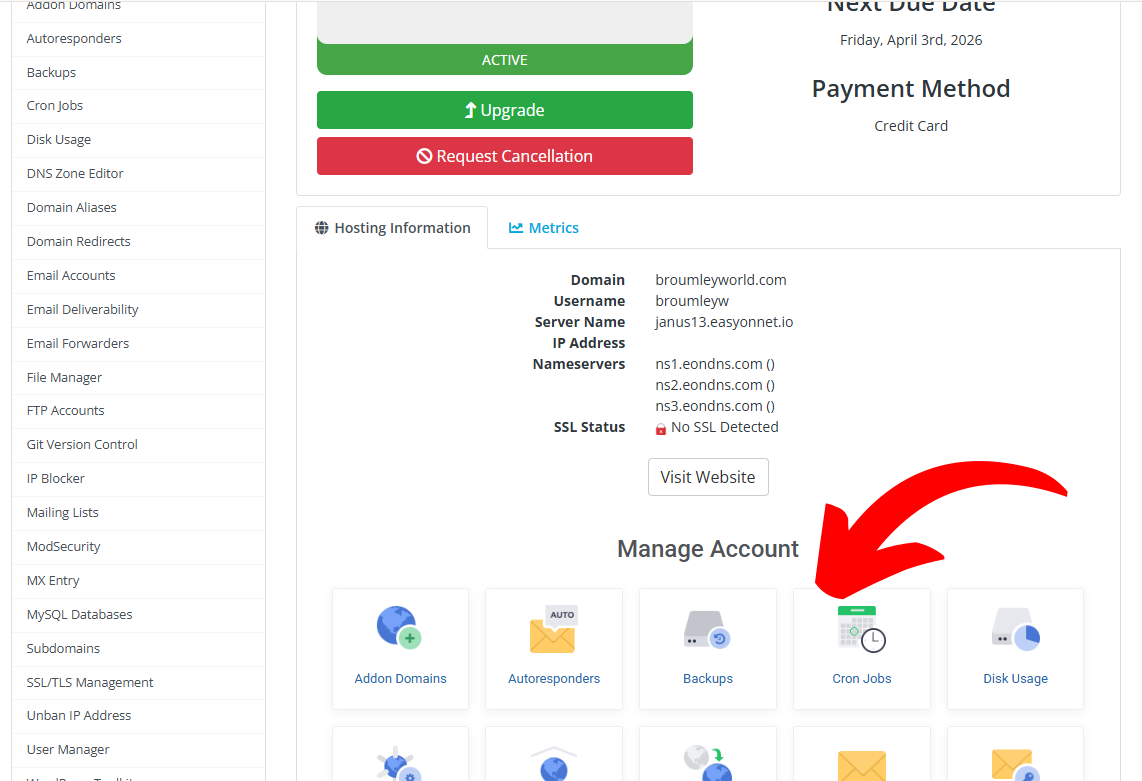
Scroll down to access individual tools or use the cPanel link at the bottom for full control panel access.
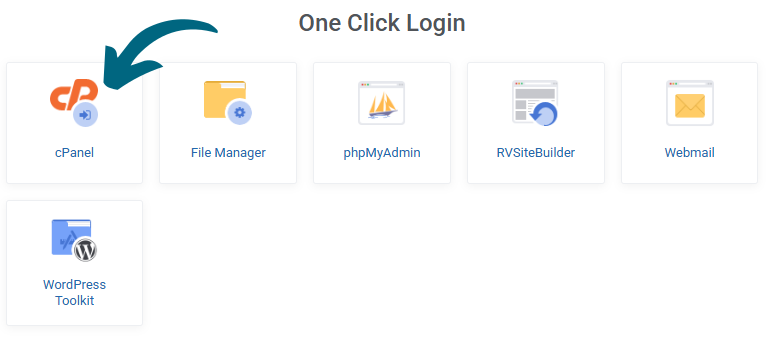
At the bottom you'll find links to the full featured control panel Cpanel. This will log you in automatically to your control panel where you can manage all aspects of your site directly.
What You Can Do in cPanel
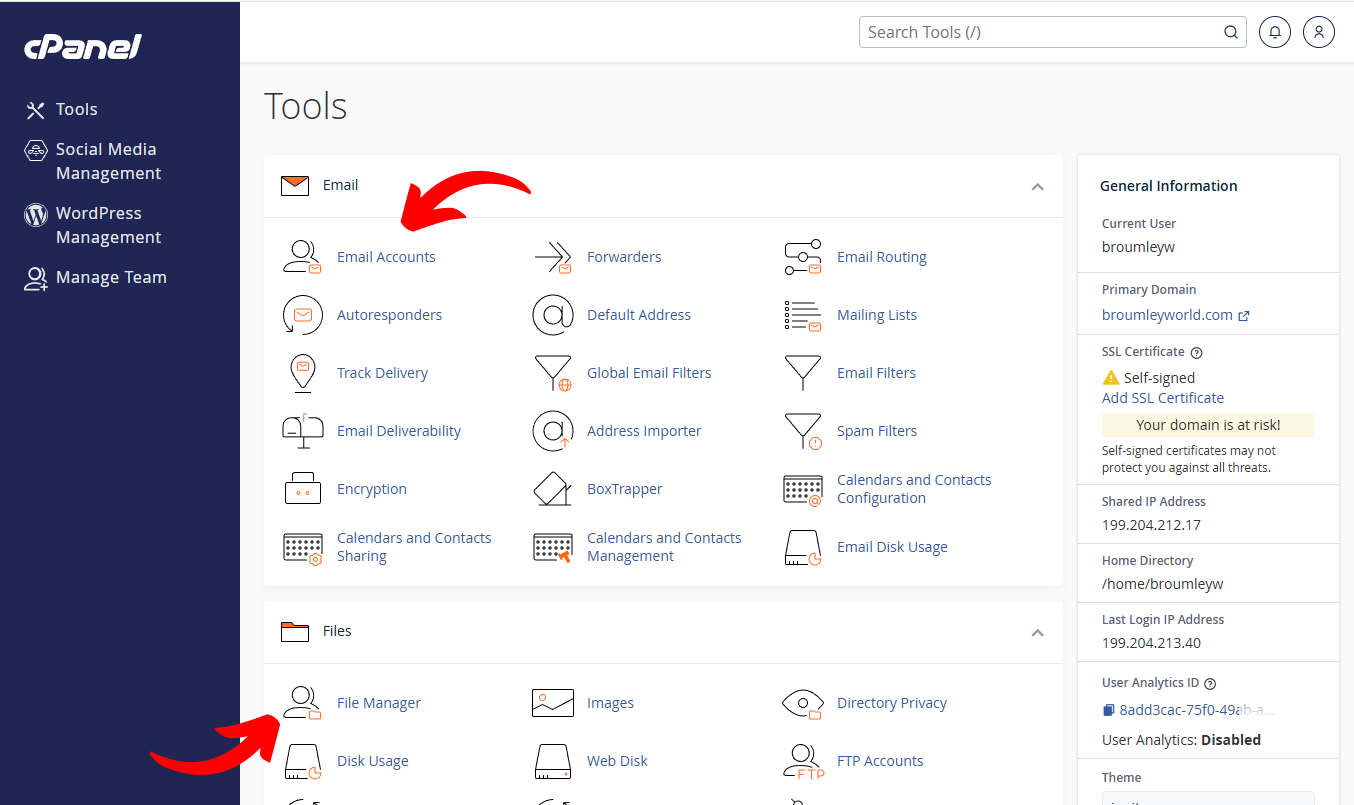
- Create and manage email accounts
- Upload and manage website files
- Access databases and backups
- Configure domains, subdomains, and redirects
- Install applications like WordPress
Tips
- If you don’t see your service listed, make sure you are logged into the correct account.
- Bookmark the customer portal for quicker access in the future.
- Use the cPanel link at the bottom of the service page for full functionality.
Need Help?
- If anything is missing, or doesn't work immediately, please contact us, we have migrated thousands of accounts into the system and not everything has been perfect!
- Email our support team at support@easyonnet.com.
- Include your domain name and a brief description of what you're trying to do.